Telegram Notifications
Scaleo allows you to receive platform notifications via Telegram in addition to Email. This article explains how to create a Telegram bot, connect it to Scaleo, configure notification channels, and set up personal notifications for teammates.
In This Article
- Creating a Telegram Bot
- Connecting the Bot to Scaleo
- Configuring Notification Channels
- Setting Up Personal Notifications
- Linking Affiliates to Group Chats
- Bot Commands Reference
Creating a Telegram Bot
To send notifications via Telegram, you first need to create a bot using Telegram's official @BotFather.
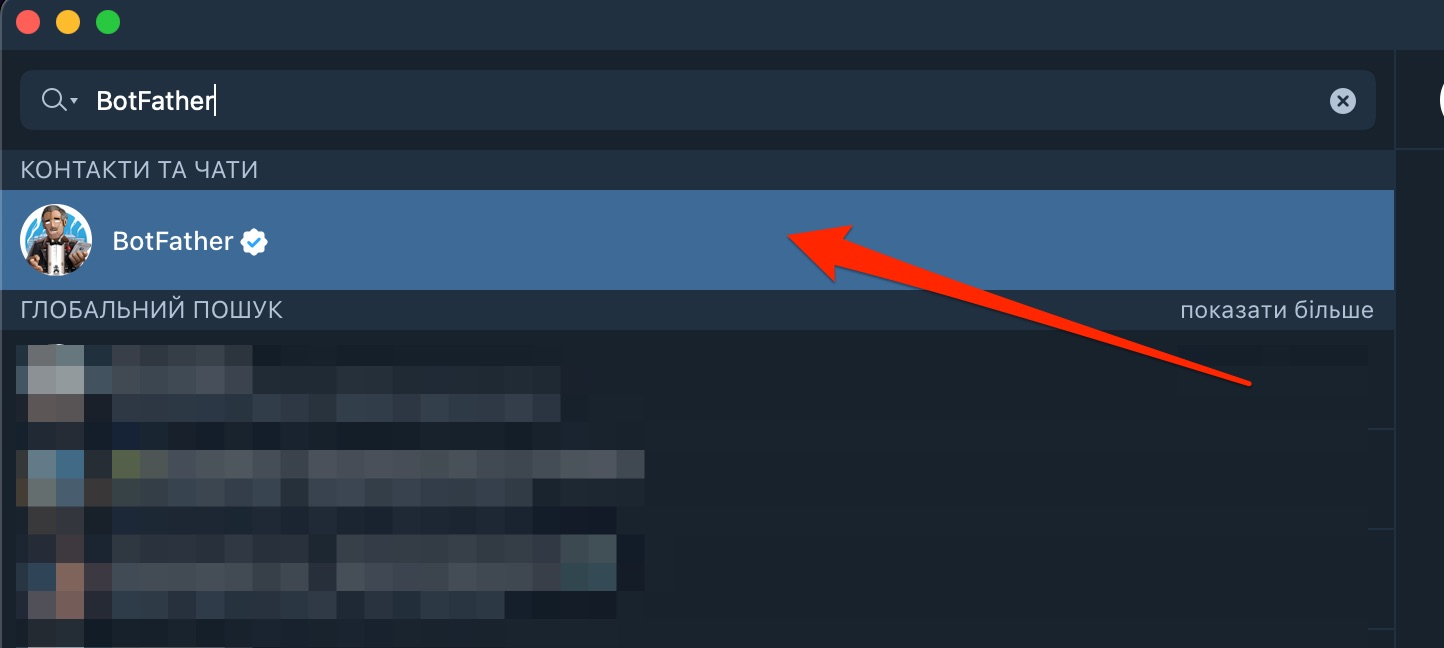
Open BotFather
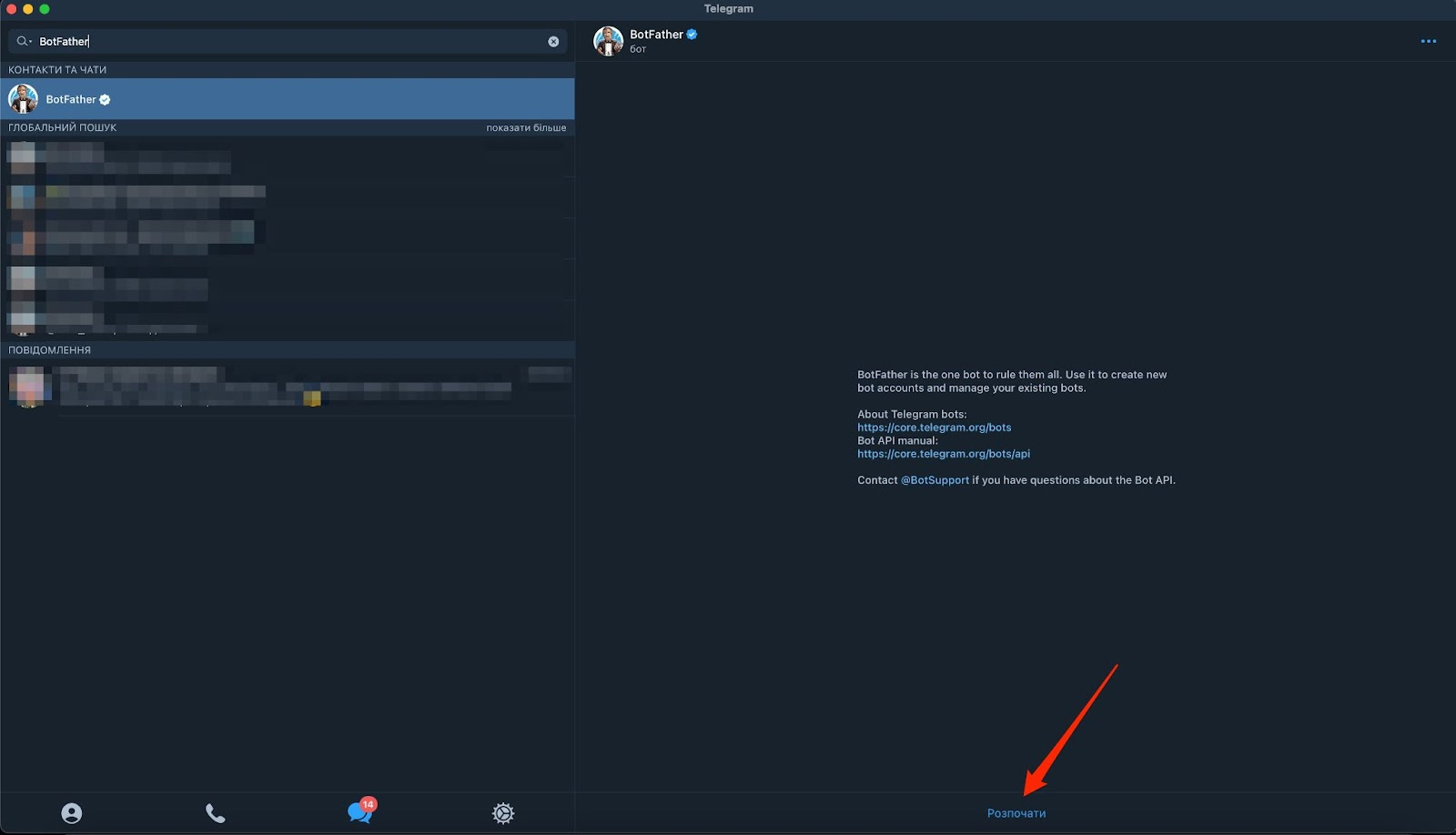
Open Telegram on your device and search for @BotFather . Select the official BotFather account (verified with a checkmark ✓) and click Start to begin.
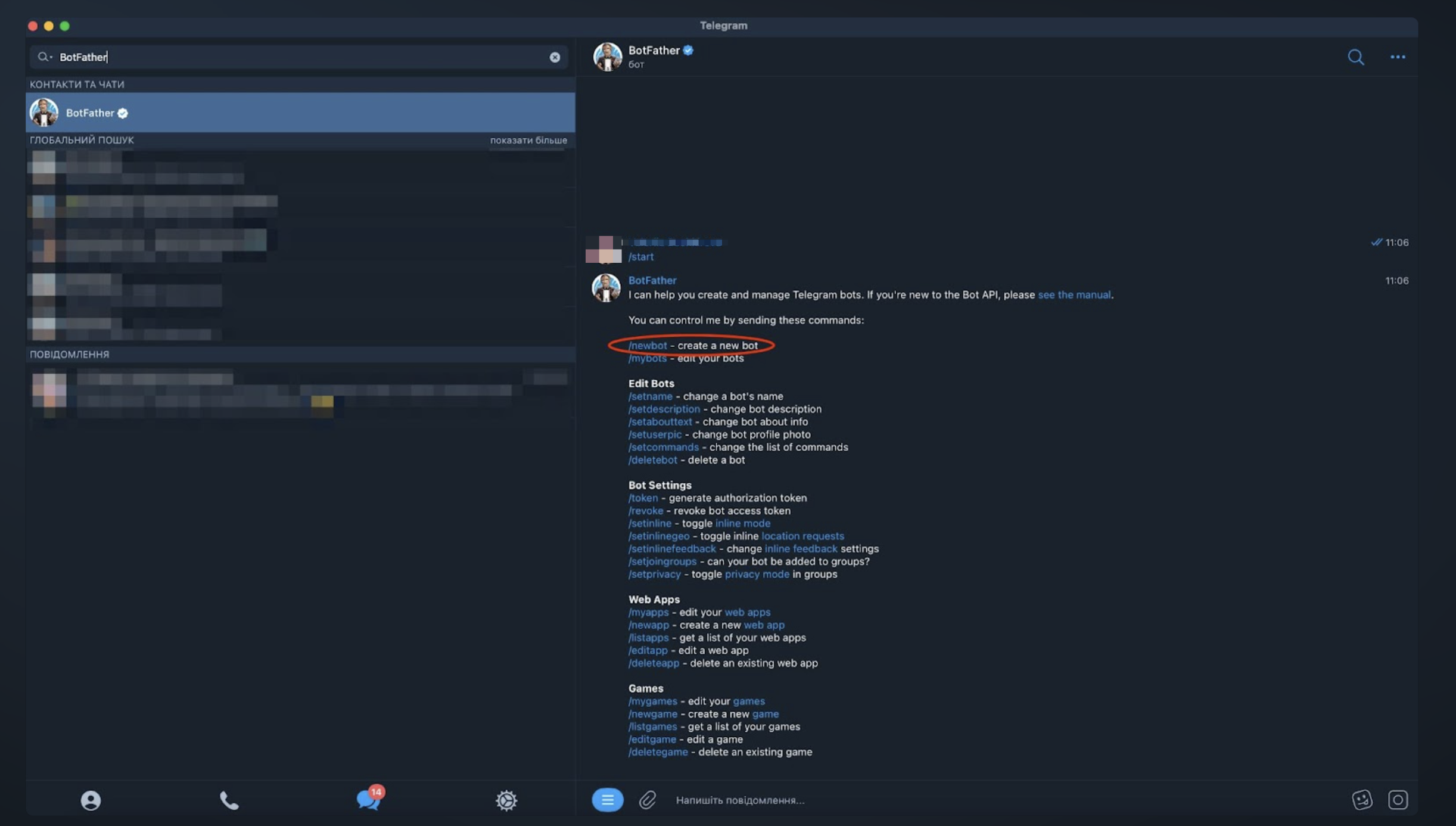
Create a New Bot
Send the command /newbot to BotFather.
You will be asked to provide:
- Name — the display name users will see (e.g., "JuniorWorld Notifications")
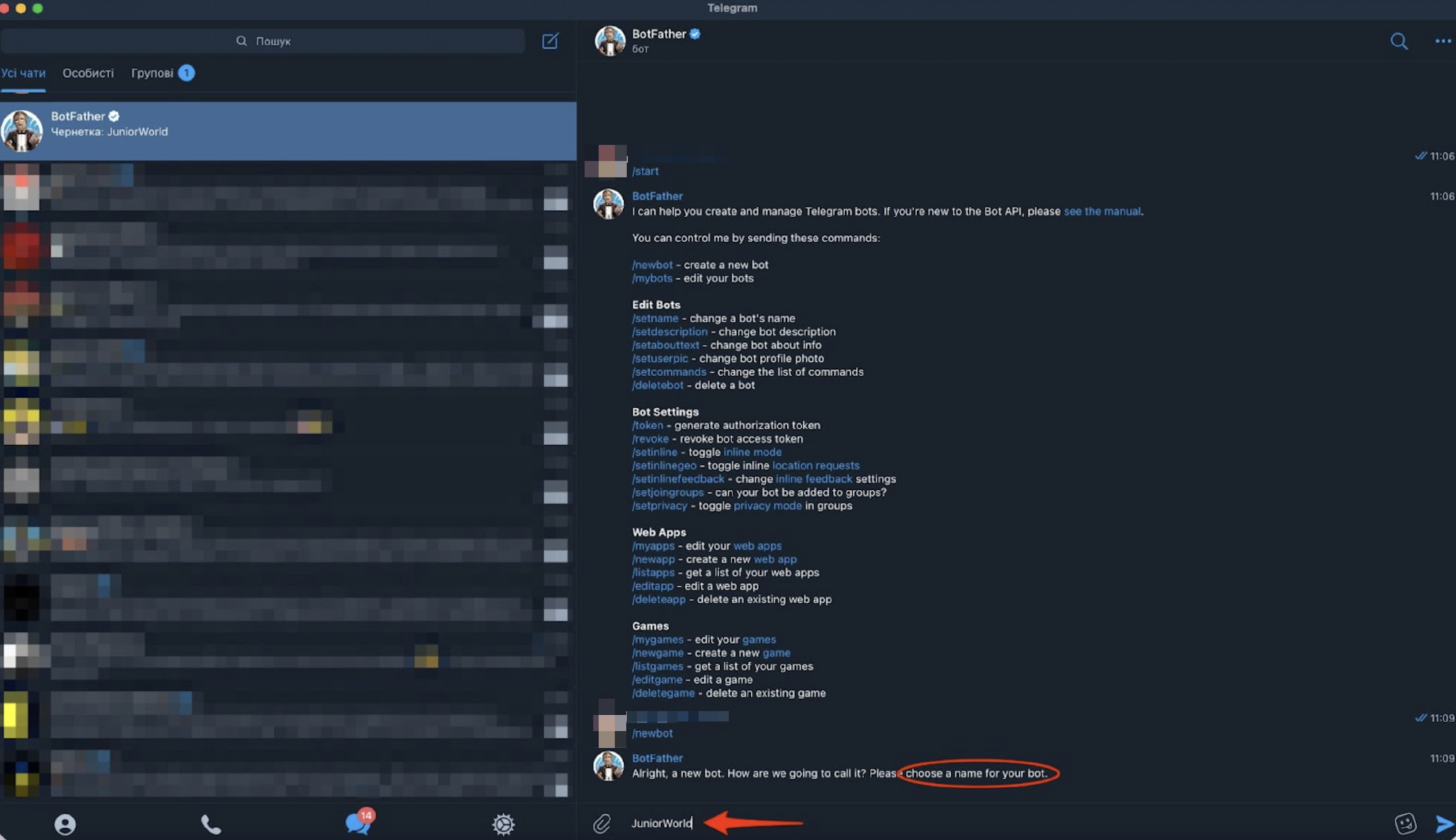
-
Username — must end in
bot(e.g., "JuniorWorld_notifications_bot")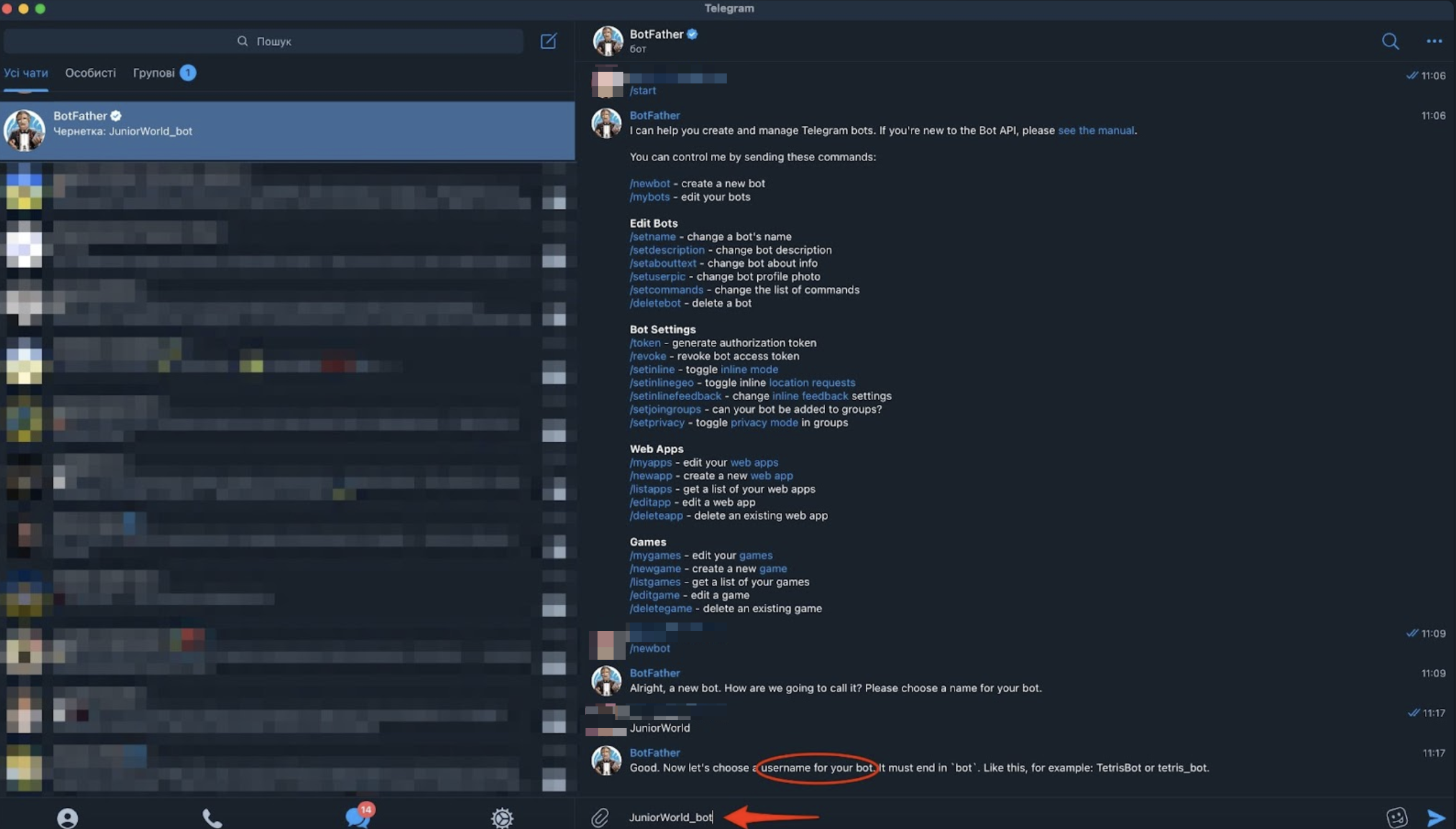
Save Your Bot Token
After creating the bot, BotFather will send you a bot token that looks like this:
7123456789:AAHn4XXXXXXXXXXXXXXXXXXXXXXXXXX
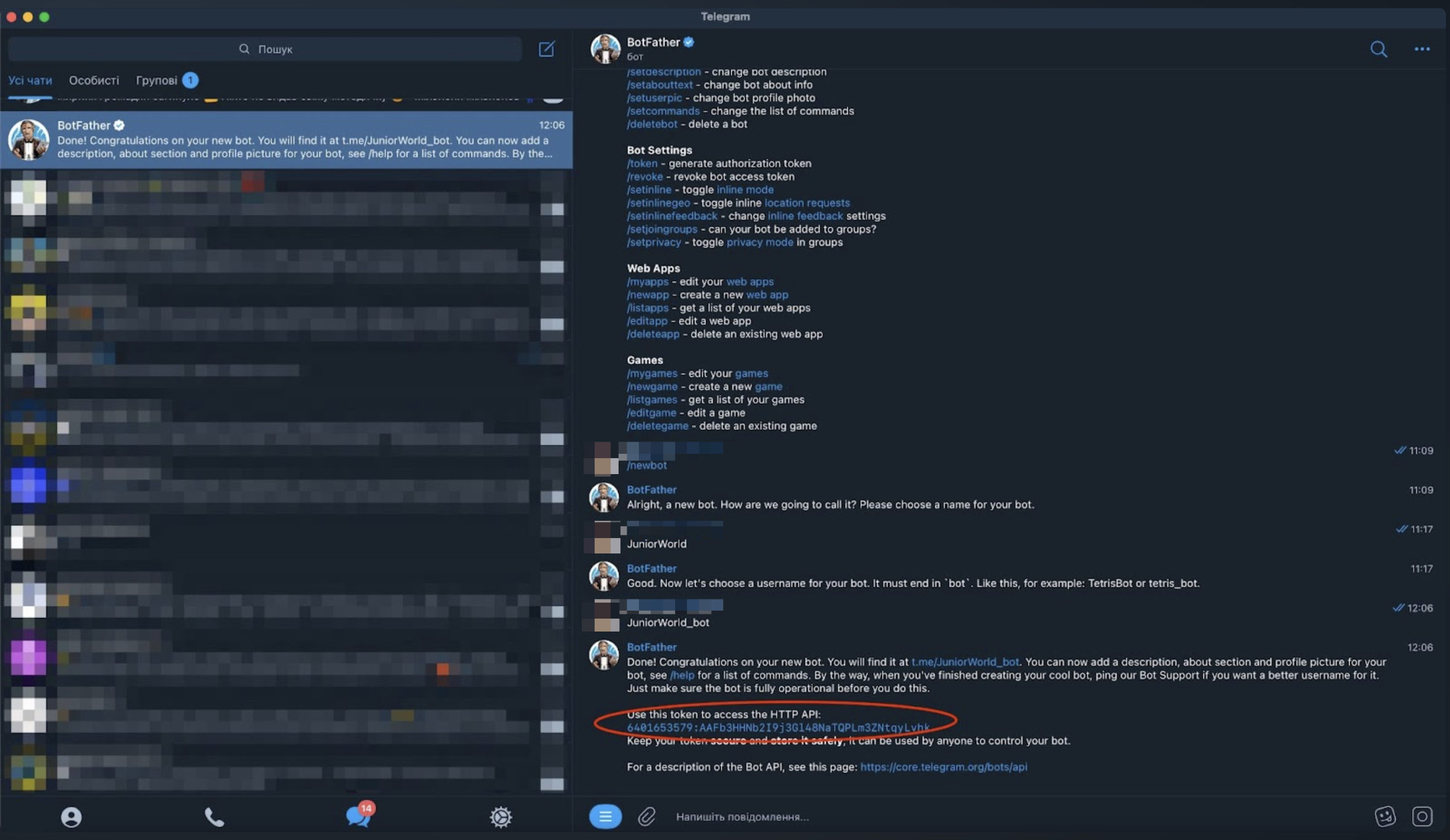
Important: Keep this token secure. Anyone with access to it can control your bot.
Customize Your Bot (Optional)
To customize your bot's appearance, send /mybots to BotFather, select your bot, and click Edit Bot to change the name, description, or profile picture.
Connecting the Bot to Scaleo
Once you have created your bot, connect it to your Scaleo platform.
Navigate to Notifications Settings
Log in to Scaleo as an Admin and go to Settings → Notifications → Channels configuration.
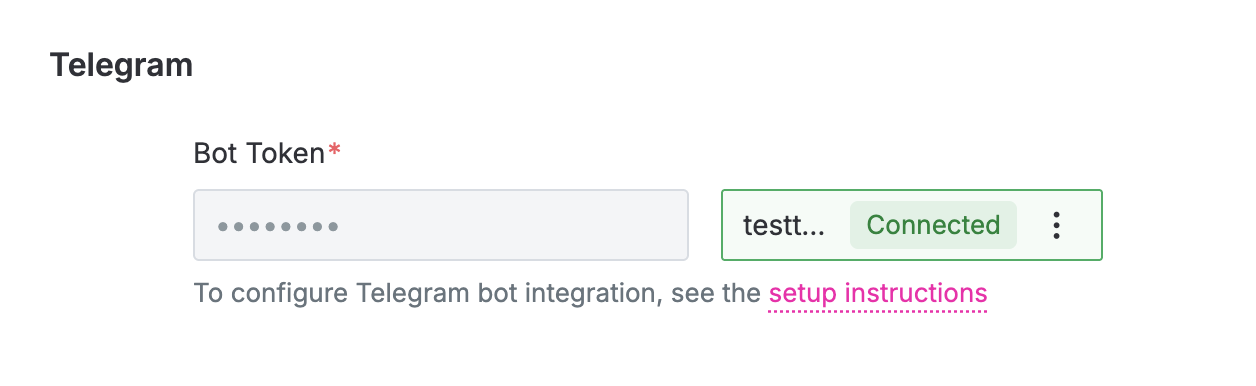
In the Telegram Configuration section, paste your bot token into the Bot Token field and click Test Connection. Wait for verification — you should see a "Connected" status with a green badge.
If connection fails, verify:
- Token is copied correctly without extra spaces
- Bot hasn't been deleted in Telegram
Configuring Notification Channels
After connecting the bot, configure which notifications can be sent via Telegram.
Teammate Notifications
Go to Settings → Notifications → Teammate. For each notification type, you'll see two toggles:
- Email — enable/disable email delivery
- Telegram — enable/disable Telegram delivery
These settings act as defaults for new users. Existing users who have already configured their preferences will not be affected.
Affiliate Notifications
Go to Settings → Notifications → Affiliate. Enable or disable Email and Telegram channels for each notification type. These settings apply immediately to all affiliates.
Setting Up Personal Notifications
Each teammate needs to connect their Telegram account to receive notifications.
Generate Personal Token
Go to Profile → Notifications. In the Telegram Connection section, click Generate Token. Your unique token will be displayed. Click the Copy button to copy it.
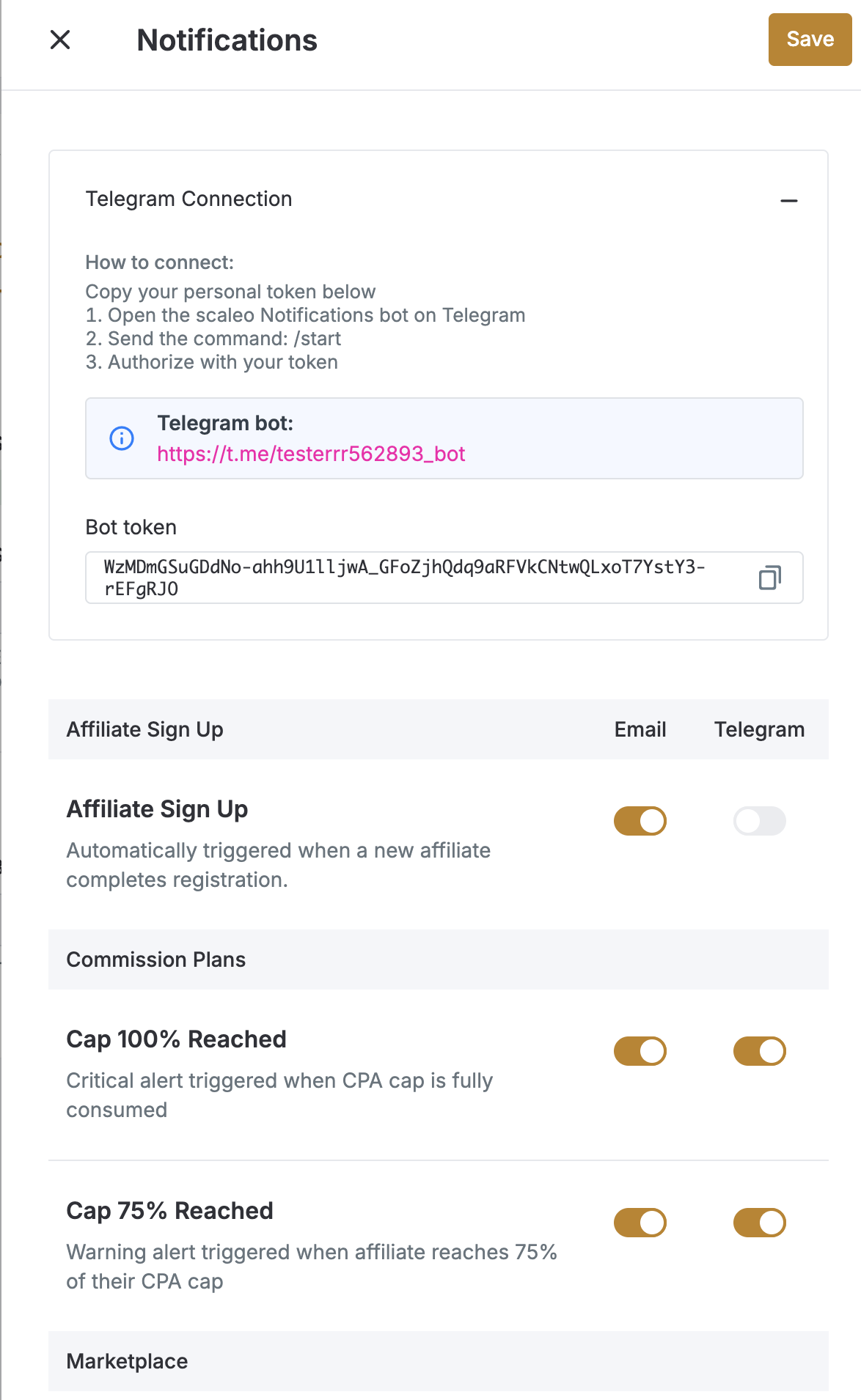
Authorize in Telegram
Click the bot link to open your bot in Telegram and click Start to activate it.
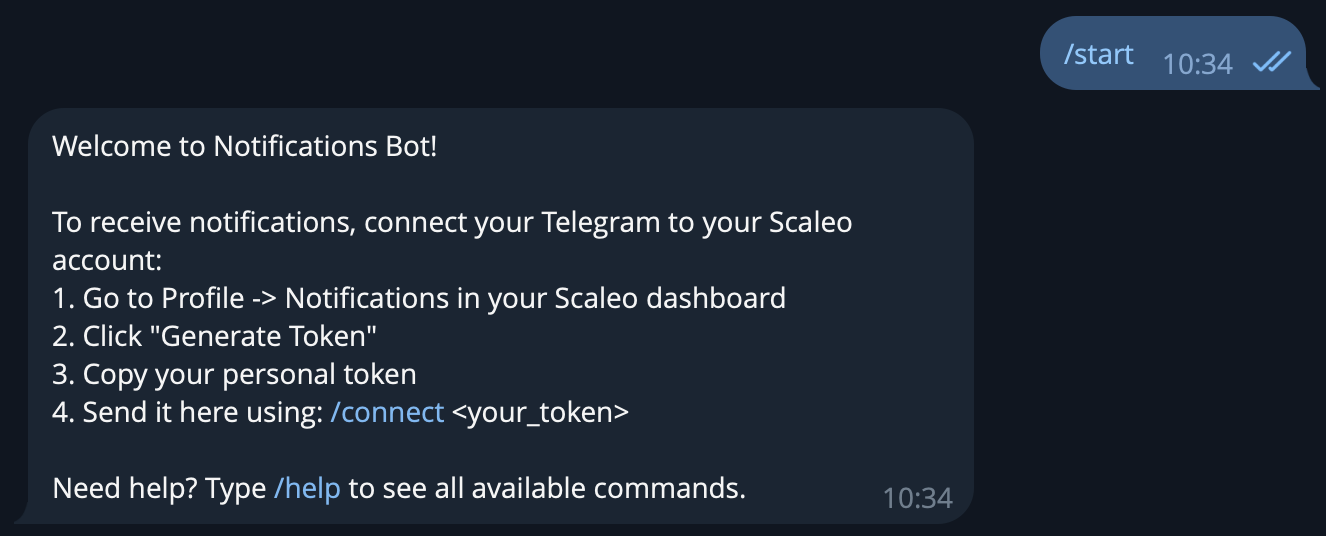
Send the command /connect <your token> .
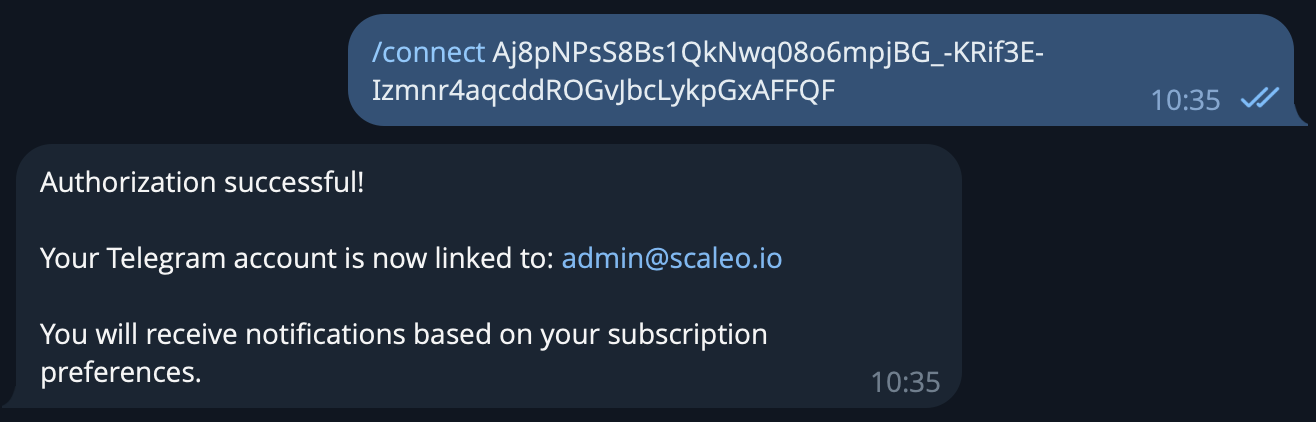
You'll receive a confirmation message:
✅ Authorization successful!

Your Telegram account is now linked to: [email protected]
You will receive notifications based on your subscription preferences.
Configure Your Preferences
Return to Profile → Notifications in Scaleo. For each notification, toggle Email and Telegram on or off based on your preferences. Your choices are saved automatically.
Linking Affiliates to Group Chats
Affiliate managers usually have Telegram group chats with affiliates.
Add your Scaleo bot to the existing group chat
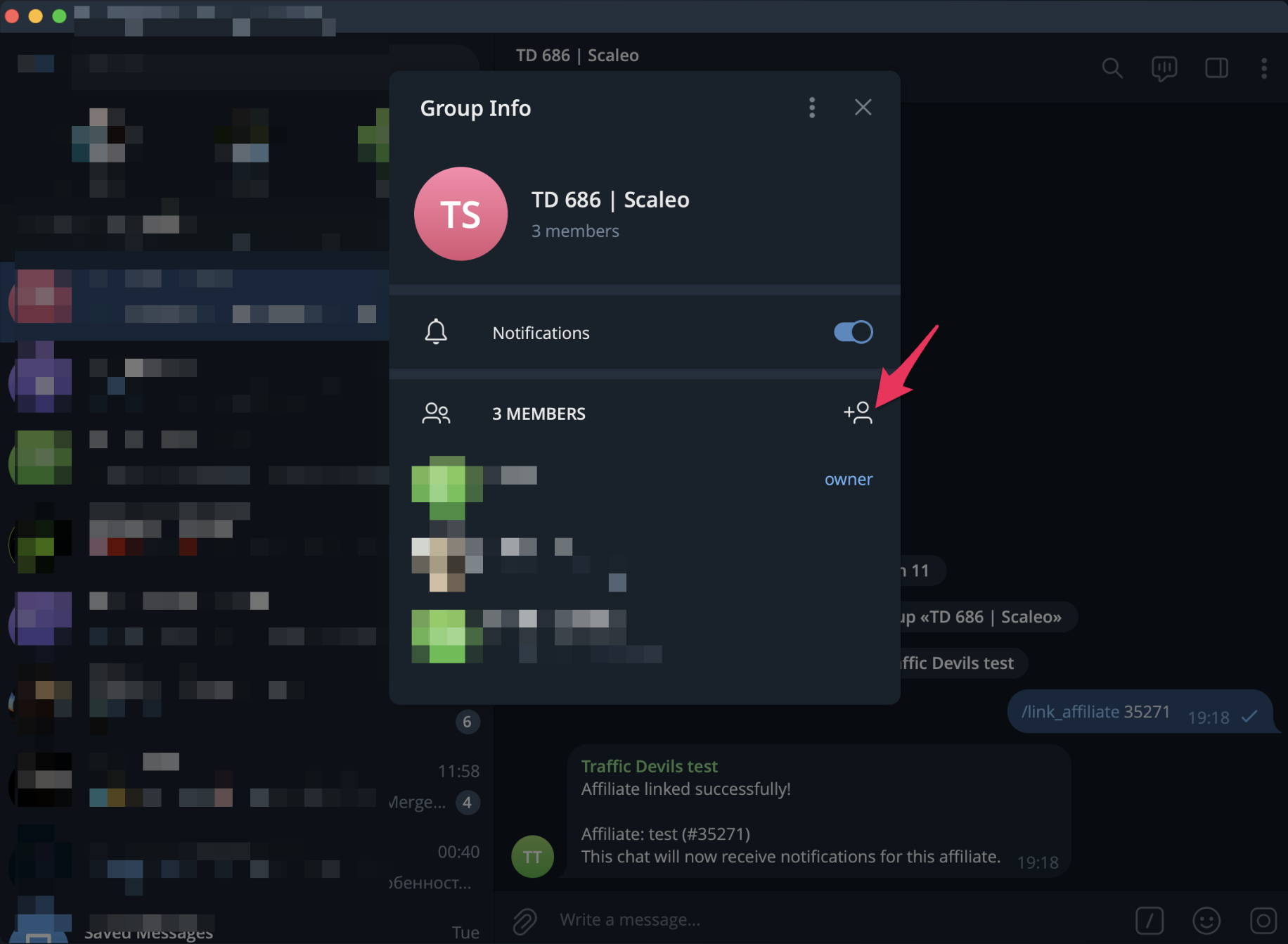
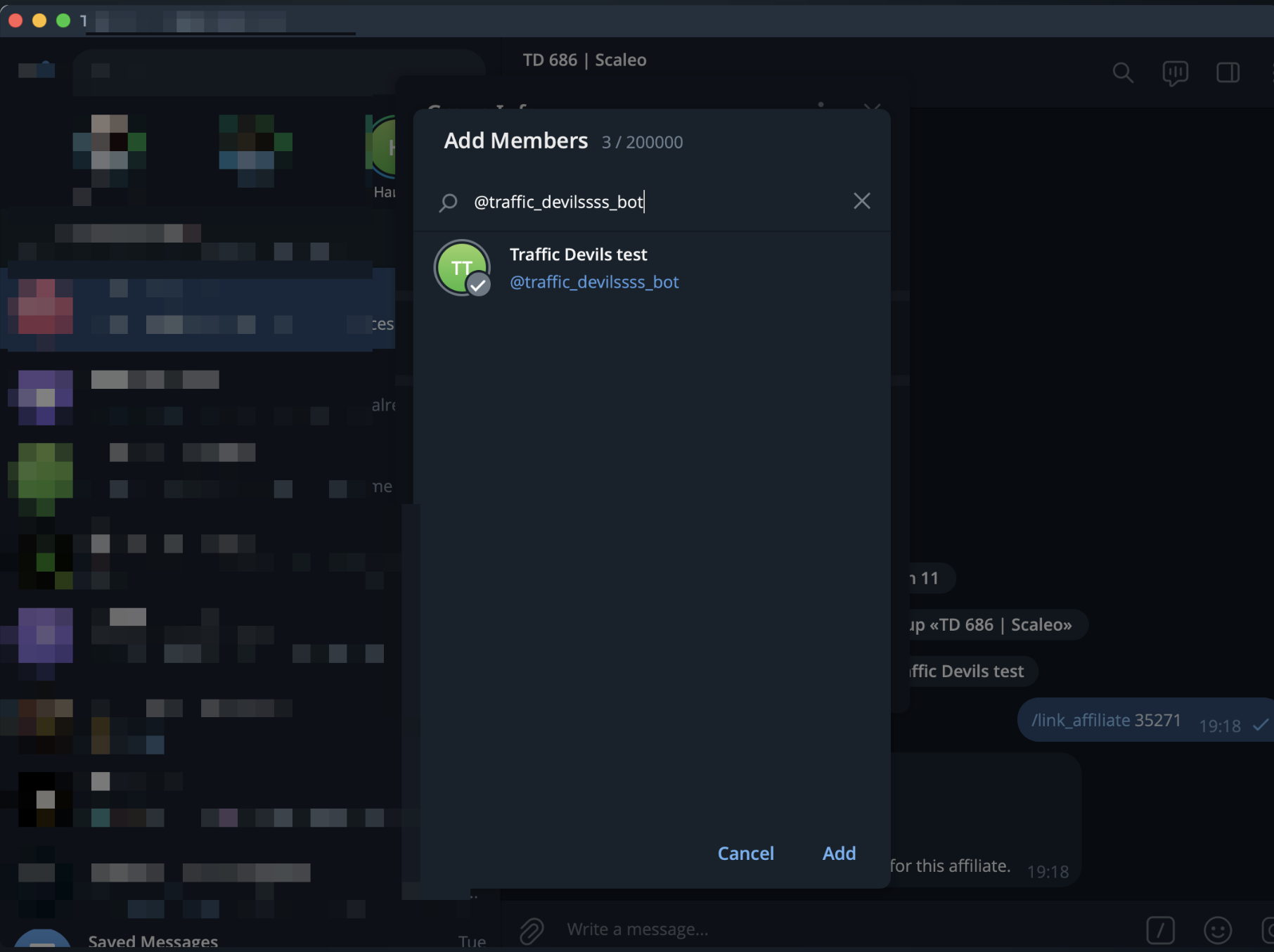
Link an Affiliate
In the group chat, send /link_affiliate <id> .
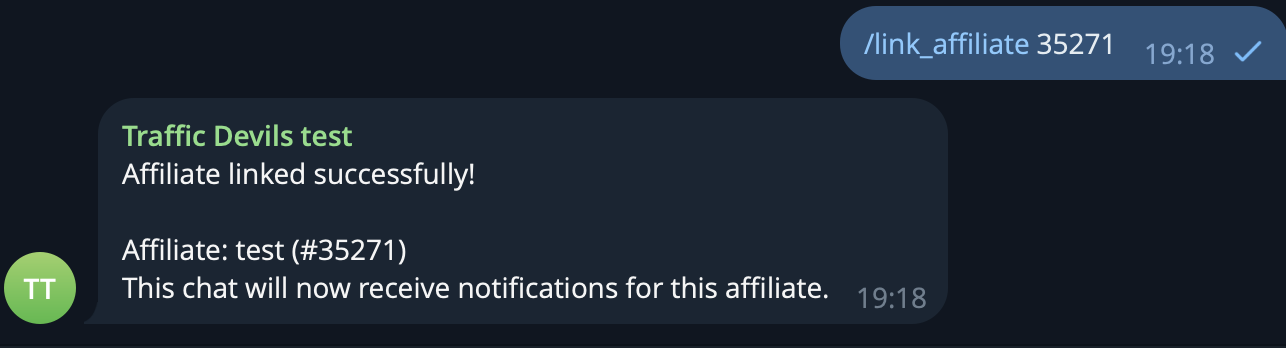
You'll receive confirmation:
✅ Affiliate linked successfully!

Affiliate: John Smith (#12345)
This chat will now receive notifications for this affiliate.
Check Status
To see which affiliate is linked to the current chat, send /status in the group.
Unlink Affiliate
To stop receiving notifications for an affiliate, send /unlink_affiliate <id> in the group and enter the Affiliate ID.
Bot Commands Reference
| Command | Description | Where to Use |
|---|---|---|
/connect |
Connect your Scaleo account | Private chat or group |
/link_affiliate |
Link affiliate to group chat | Group chat only |
/unlink_affiliate |
Remove affiliate from group | Group chat only |
/status |
Show current connection status | Private chat or group |
/help |
Show available commands | Anywhere |