MCP Server
Connect AI assistants such as Claude, ChatGPT, or Cursor to your Scaleo workspace and ask questions about your performance data in plain language. Answers are built from your live workspace data, with no exports, formulas, or API keys.
Early Access. MCP Server is available to a limited group of clients and will open to everyone soon. Want to try it now? Contact your account manager or our Support team. We’d love your feedback.
At a glance
| Access | Read-only. The assistant can't create, edit, or delete anything. |
| Sign-in | Your usual Scaleo login. No API key needed. |
| Works with | Claude, ChatGPT, Cursor, Claude Code, and other MCP clients with OAuth |
| Who can connect | Team members only (not affiliates or advertisers) |
| Setup time | About 2 minutes |
In this article
- What is MCP?
- Use cases
- What your assistant can access
- Step 1. Enable MCP Server in Scaleo
- Step 2. Connect your AI client
- Access and permissions
- Disable MCP Server
- What MCP Server can't do
- Troubleshooting
What is MCP?
The Model Context Protocol (MCP) is an open standard that lets AI assistants securely connect to external tools and data. Scaleo's MCP Server gives your AI assistant read-only access to your workspace. It can look up and analyze data, but it can never change anything.
Use cases
| Scenario | Try asking |
|---|---|
|
Weekly performance review Skip rebuilding the same report every Monday. |
“Compare last week to the week before: top 10 affiliates by NGR, with registrations, FTDs, deposits and commission. Highlight anyone whose FTDs dropped more than 30%.” |
|
Morning digest on autopilot Set it up once as a scheduled task in Claude. |
“Every morning: new affiliate sign-ups, yesterday’s registrations, FTDs and NGR vs. the 7-day average, and any affiliate with zero FTDs for 3 days in a row.” |
|
Spot affiliates going quiet Catch churn before it shows in monthly numbers. |
“Which affiliates brought FTDs every week last month but none in the last 7 days?” |
|
Investigate a sudden spike Understand where unusual traffic comes from in seconds. |
“Registrations from affiliate 1234 jumped yesterday. Break them down by GEO, sub ID and landing page, and compare to their 7-day average.” |
|
Prepare for an affiliate call Walk into every call with the numbers ready. |
“Give me a one-paragraph summary of affiliate 1234: FTDs, NGR, top GEOs, and how their last 30 days compare to the 30 days before.” |
|
Find traffic that doesn’t convert See where clicks don’t turn into players. |
“Show affiliates with more than 1,000 clicks in the last 14 days and a click-to-registration rate below 2%, grouped by GEO.” |
|
Manager portfolio check Compare your team’s results at a glance. |
“Summarize this month’s FTDs, NGR and active affiliates per manager, compared to last month.” |
|
Commission vs. NGR check Make sure your deals stay profitable. |
“Show affiliates whose commission was more than 40% of their NGR last month.” |
|
Registration-to-FTD funnel See which sources bring players who actually deposit. |
“For each affiliate this month, show registrations, FTDs and the registration-to-FTD rate. Flag anyone below 15%.” |
|
Player quality by source Tell one-time depositors from players who stay. |
“For FTDs from the last 30 days, which affiliates brought players who made no further deposits? Show FTD count and the share of repeat depositors per affiliate.” |
|
Offer performance check See which offers are worth pushing. |
“Which offers had the best conversion rate this week? Show clicks, conversions, revenue and payout for the top 10.” |
|
Catch a conversion drop early Spot problems before the advertiser does. |
“Which offers had at least 30% fewer conversions this week compared to last week?” |
|
Pending conversions review Clear your approval queue faster. |
“How many conversions are pending by offer and affiliate, and which are older than 7 days?” |
What your assistant can access
- Reports and statistics
- Clicks and conversions
- Affiliates
- Offers, brands, creatives, and landing pages
- Campaigns and postbacks
- Tags and managers
- Advertisers (network workspaces)
- Player-level KPIs (iGaming workspaces)
Step 1. Enable MCP Server in Scaleo
- Go to Settings → Tools and Integrations → MCP Server.
- Switch on Enable MCP Server.
- Copy the Server URL. It's unique to your workspace.
Only Admins and roles with access to Settings can see this page.
Don’t see this page? MCP Server is in early access. Contact our Support team to get it enabled for your workspace.

Step 2. Connect your AI client
In every client, the flow is the same: paste the Server URL, sign in with your Scaleo credentials, and click Authorize. You don't need an API key, client ID, or secret.
Claude (claude.ai and Claude Desktop)
- Open Settings → Connectors → Add custom connector.
- Name it and paste your Server URL.
-
Click Add, then Connect.
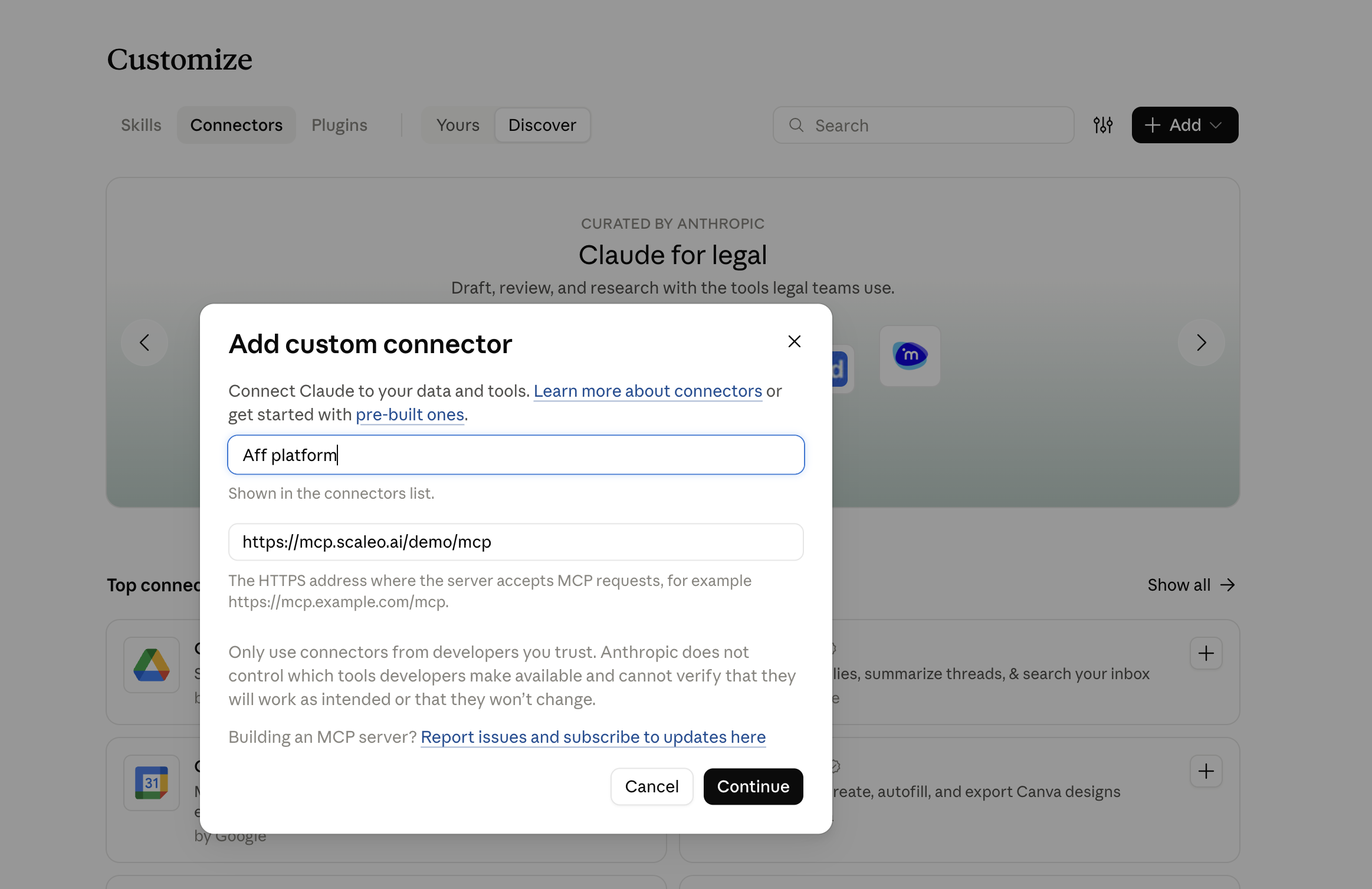
- Sign in to Scaleo and click Authorize.

- In a new chat, make sure Scaleo is turned on in the tools menu.

On Team and Enterprise plans, an owner may need to add the connector for the organization first.
ChatGPT
You need a paid ChatGPT plan.
- Plus and Pro: go to Settings → Connectors → Advanced, turn on Developer mode, then click Create.
- Business, Enterprise, and Edu: a workspace owner or admin adds the connector once for everyone.
- Name it and paste your Server URL.
- Choose OAuth authentication and leave the client ID and secret empty.
- Save and click Connect.
- Sign in to Scaleo and click Authorize.
- In a chat, open the tools menu and turn Scaleo on.
Cursor
- Open Cursor Settings → MCP → Add new MCP server. This opens
mcp.json. - Add Scaleo inside
mcpServers:
{
  "mcpServers": {
    "scaleo": {
      "url": "YOUR_SERVER_URL"
    }
  }
}
- Save the file. Scaleo appears in the MCP list with a Login button. Click it, sign in, and click Authorize.
- Ask your questions in Agent mode. MCP tools don't run in other modes.
Claude Code
claude mcp add --transport http scaleo YOUR_SERVER_URL
Then run /mcp and complete the sign-in.
Other clients
Any client that supports remote MCP servers with OAuth sign-in will work. Add a remote (HTTP) MCP server and use your Server URL.
Check that it works: ask "Using Scaleo, how many active affiliates do we have?" If you get a number back, you're connected.
Your password is never shared with the AI client. The client receives a secure, read-only token tied to your account.
Access and permissions
- Read-only. The assistant can't create, edit, or delete any data.
- Your permissions apply. Every request runs under the account you signed in with, so the assistant sees only what you can see in Scaleo. This includes payout, revenue, and commissions visibility, and assigned-users restrictions.
- Team members only. Affiliate and advertiser accounts can't connect.
- Several workspaces. Add each workspace as a separate connector using its own Server URL.
Disable MCP Server
Switch off Enable MCP Server on the same settings page. All connected AI clients lose access immediately, and no new connections can be made until you turn it back on. Enabling and disabling is recorded in the Activity Log.
What MCP Server can't do
- Change data. Use the Scaleo interface or API for that.
- Send alerts or react to events. The assistant only answers when you ask, so requests like "tell me when a new affiliate signs up" won't work.
- Access billing and invoices. These aren't available yet.
Tip: get regular digests instead. Some AI clients can run a question on a schedule. In Claude, open Scheduled in the left sidebar, click New task, and give it a prompt like “Using Scaleo, list affiliates who signed up in the last 24 hours and any affiliate whose FTDs dropped more than 30% vs. their 7-day average.” Set it to run every morning, and the summary will be waiting for you. Scheduled tasks are available on paid Claude plans.
Troubleshooting
| Problem | What to do |
|---|---|
| I don’t see MCP Server in Settings | MCP Server is in early access. Contact our Support team to get it enabled for your workspace. |
| The assistant answers from general knowledge, not my data | Make sure Scaleo is switched on in the chat's tools menu, and start your question with "Using Scaleo, …". |
| The connection fails, or the sign-in page doesn't open | Check that you copied the full Server URL and that MCP Server is enabled in Scaleo settings. |
| It worked before, now it doesn't | An admin may have disabled MCP Server, or your session expired. Reconnect from your AI client's connector settings. |
| Cursor shows Scaleo in red with no tools | Toggle Scaleo off and on in MCP settings, or restart Cursor. |
| Some numbers are missing | The assistant sees only what your Scaleo role can see. Ask your admin about your permissions. |