Visibility Groups
This article explains how to use Visibility Groups to control which offers, affiliates and advertisers your teammates can see.
In this article
💡 Visibility Groups are available only on the Enterprise and Custom plans.
What are Visibility Groups
A Visibility Group is a group of teammates who share the same visibility rules. Each group defines which:
- offers its teammates can see,
- affiliates its teammates can see,
- advertisers its teammates can see.
You can define each rule using either a manual selection or tags. When tags are used, new offers, affiliates and advertisers become visible to the group automatically as soon as they are assigned a matching tag. There’s no need to update the group manually each time.
A common use case is a workspace with multiple business lines, for example, an affiliate network and an in-house media buying team, or separate teams for different verticals. Visibility Groups ensure that each team can see only the affiliates, advertisers and offers available to its group, including their payouts and rates.
Create a Visibility Group
To manage Visibility Groups, go to Settings > Team > Visibility Groups. The list shows each group’s title, its teammates, Affiliate and Advertiser Visibility.

To create a group, click Add Visibility Group and complete the form:
- Title: the name of the group, for example, “Media Buying Team”.
- Teammates: the managers assigned to this group. A teammate can belong to multiple groups.
- Offer Visibility: the offers visible to the group.
- Affiliate Visibility: the affiliates visible to the group.
- Advertiser Visibility: the advertisers visible to the group.
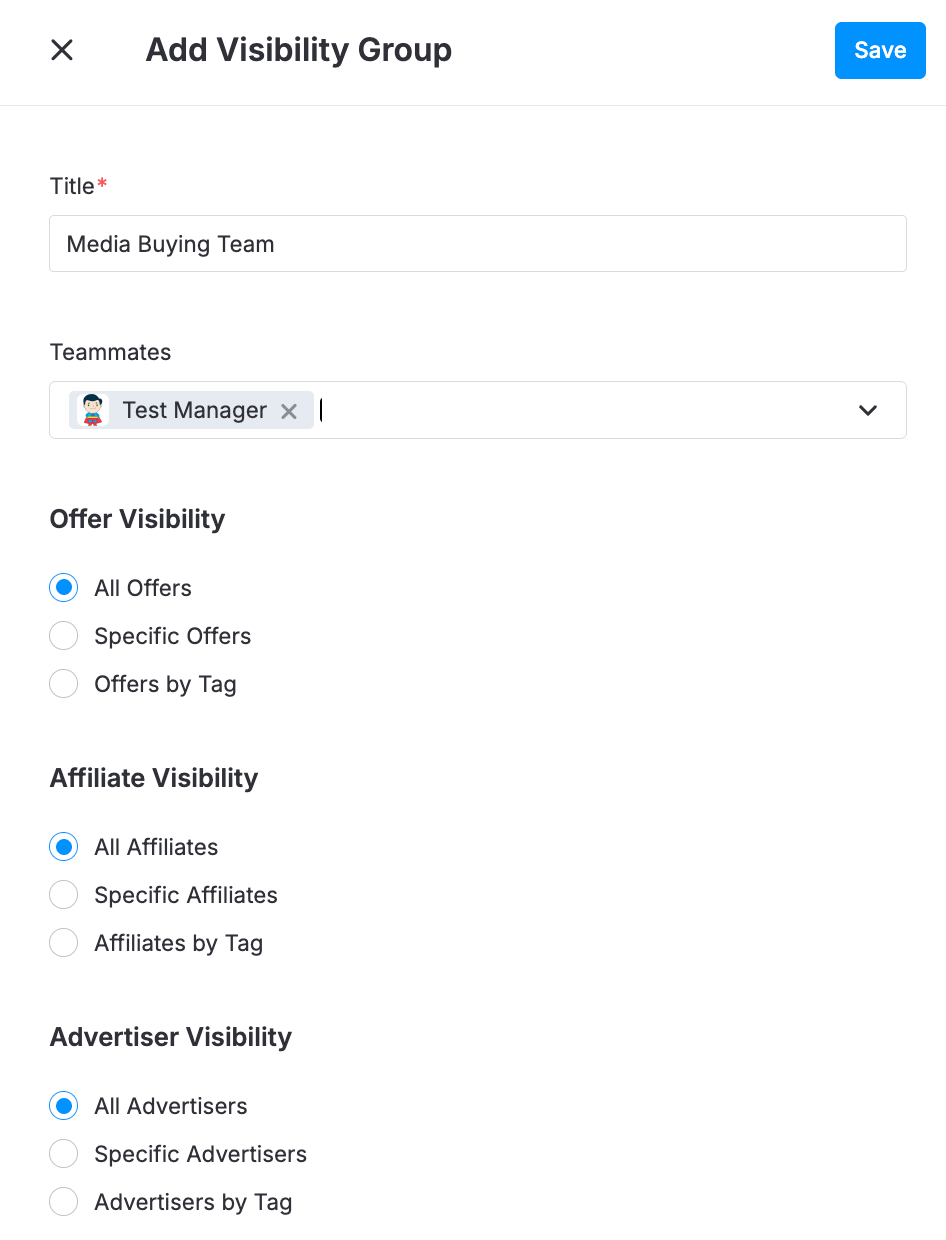
The three visibility settings are independent of one another. For example, you can limit affiliate visibility by tag while keeping Offer Visibility set to All Offers.
Make sure you click Save to apply changes.
Visibility modes
Each visibility section supports three modes:
- All (All Offers / All Affiliates / All Advertisers): the group can see all records of this type. This is the default option.
- Specific (Specific Offers / Specific Affiliates / Specific Advertisers): the group can see only the records selected from the dropdown.
- By tag (Offers by Tag / Affiliates by Tag / Advertisers by Tag): the group can see only records that have at least one of the selected tags.
Note:
- In Specific mode, if no records are selected, the group cannot see any records of this type.
- In By tag mode, you must select at least one tag to save the settings.
- In By tag mode, records without any of the selected tags are hidden from the group, including records with no tags assigned.
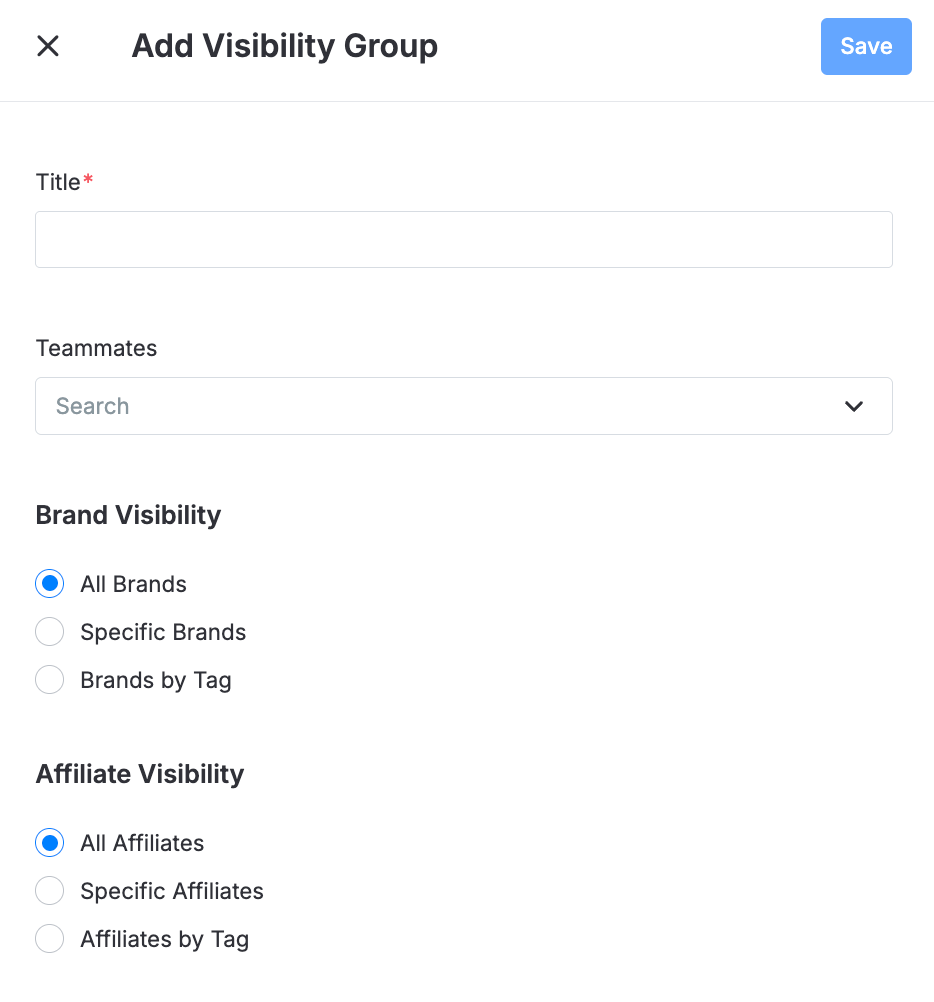
💡 On iGaming Operator and Broker platforms, a Visibility Group covers two entity types: Brands and Affiliates. The form contains two sections: Brand Visibility (All Brands / Specific Brands / Brands by Tag) and Affiliate Visibility (All Affiliates / Specific Affiliates / Affiliates by Tag).
These platforms do not include an Advertiser Visibility section in the form or an Advertiser Visibility column in the list. The behavior described below for offers also applies to brands.
The visibility of all commission plans depends on the availability of the associated brand.
Section and column names follow your workspace terminology. For example, if Affiliates are renamed to Partners, the section reads Partner Visibility.
What a teammate with visibility restrictions can see
Offer Visibility hides an offer across the platform, including its associated payouts and rates.
Affiliate Visibility hides affiliates and their related data, including postbacks, promo codes, invoices, and statistics.
Advertiser Visibility hides advertisers. It does not affect offer visibility, which is controlled exclusively by Offer Visibility. If a teammate can see an offer but not its advertiser, the advertiser’s name is not displayed on the offer page.
Records associated with multiple entities, such as clicks, conversions, and offer requests, follow an additional visibility rule. These records are visible only if the teammate can see all related entities: the offer, affiliate, and advertiser.
These restrictions also apply across reports and exports, billing (including balances, invoices, and invoice generation), adjustments, the Activity Log, dropdowns, filters, bulk actions, and API access.
Example: A group is configured to show Offers by Tag “Casino” and Affiliates by Tag “Media Buying”. A conversion associated with a “Media Buying” affiliate and a “Casino” offer is visible. A conversion associated with the same affiliate and a “Sports” offer is hidden.
💡 A teammate who is not assigned to any Visibility Group is not subject to Visibility Group restrictions. Their data visibility is determined by their role alone.
Teammates in several groups
If a teammate belongs to multiple Visibility Groups, they can see any data that is visible to at least one of their groups. Visibility is evaluated independently for offers, affiliates, and advertisers.
Example:
- Group A → offers 1, 2, 3
- Group B → offers 5, 6
A teammate who belongs to both groups can see offers 1, 2, 3, 5, and 6.
Edit or delete a Visibility Group
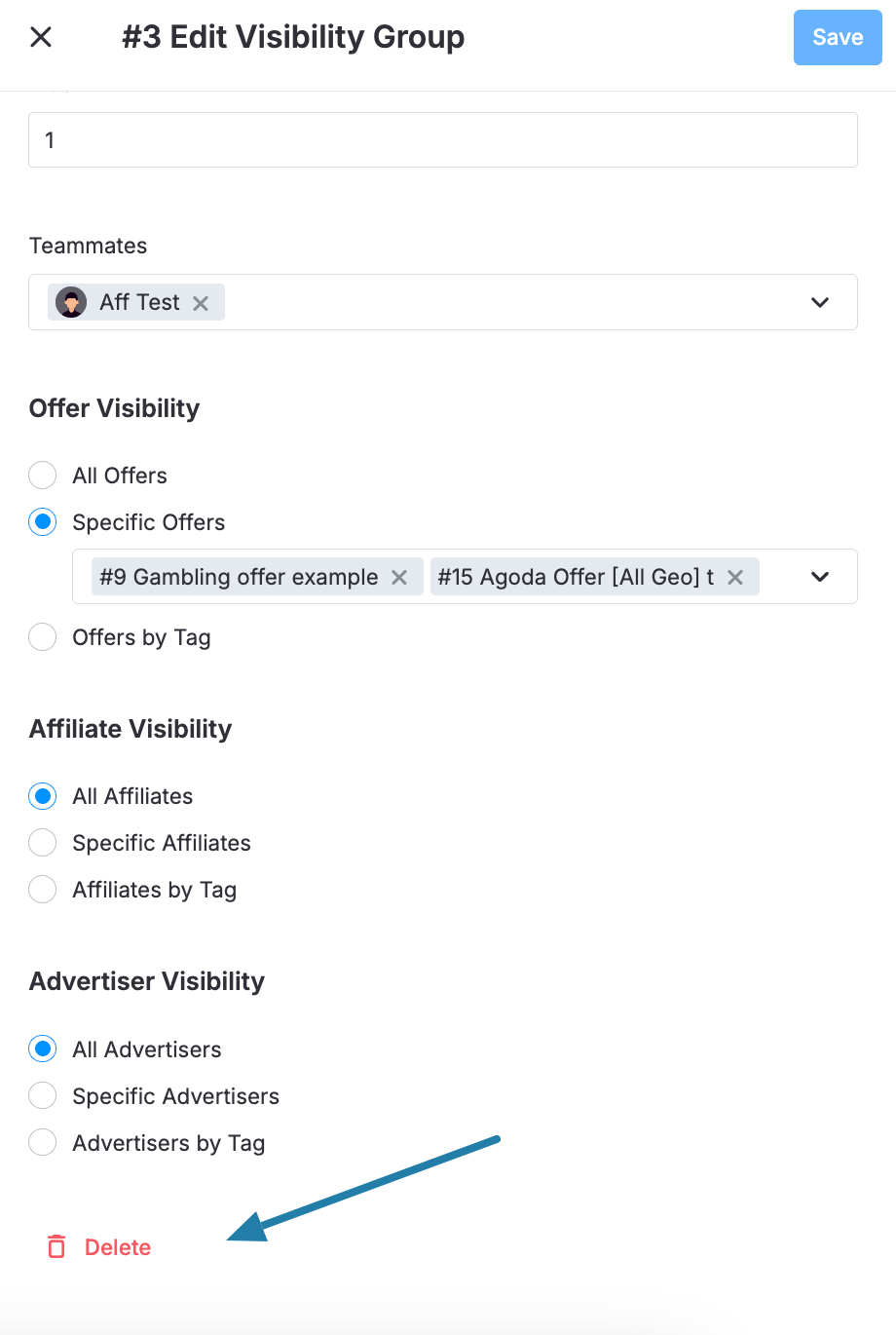
To edit a group, click the Edit (pencil) icon next to the group in the list. The form opens with the group’s current settings.

To delete a group, open the edit form, click Delete at the bottom of the form, and confirm the deletion.
Creating, editing, and deleting Visibility Groups is recorded in the Activity Log.