Offer Tracking Settings
This article provides basic information about all tracking settings available when adding or editing an offer. Information about each of the options is collected to provide a basic understanding of what these options are used for.
How to edit Tracking Settings?
Once you select an offer, there is a block at the bottom of the page, that allows you to manage and edit Offer Tracking Settings. There are several buttons that allow editing these settings:
- The"Edit" button opens the pop-up window for quick editing.
- The"Manage" button opens the "Tracking" tab in the Offer Wizard for advanced editing of the offer, if you need to review or modify not only the tracking settings but other options as well.
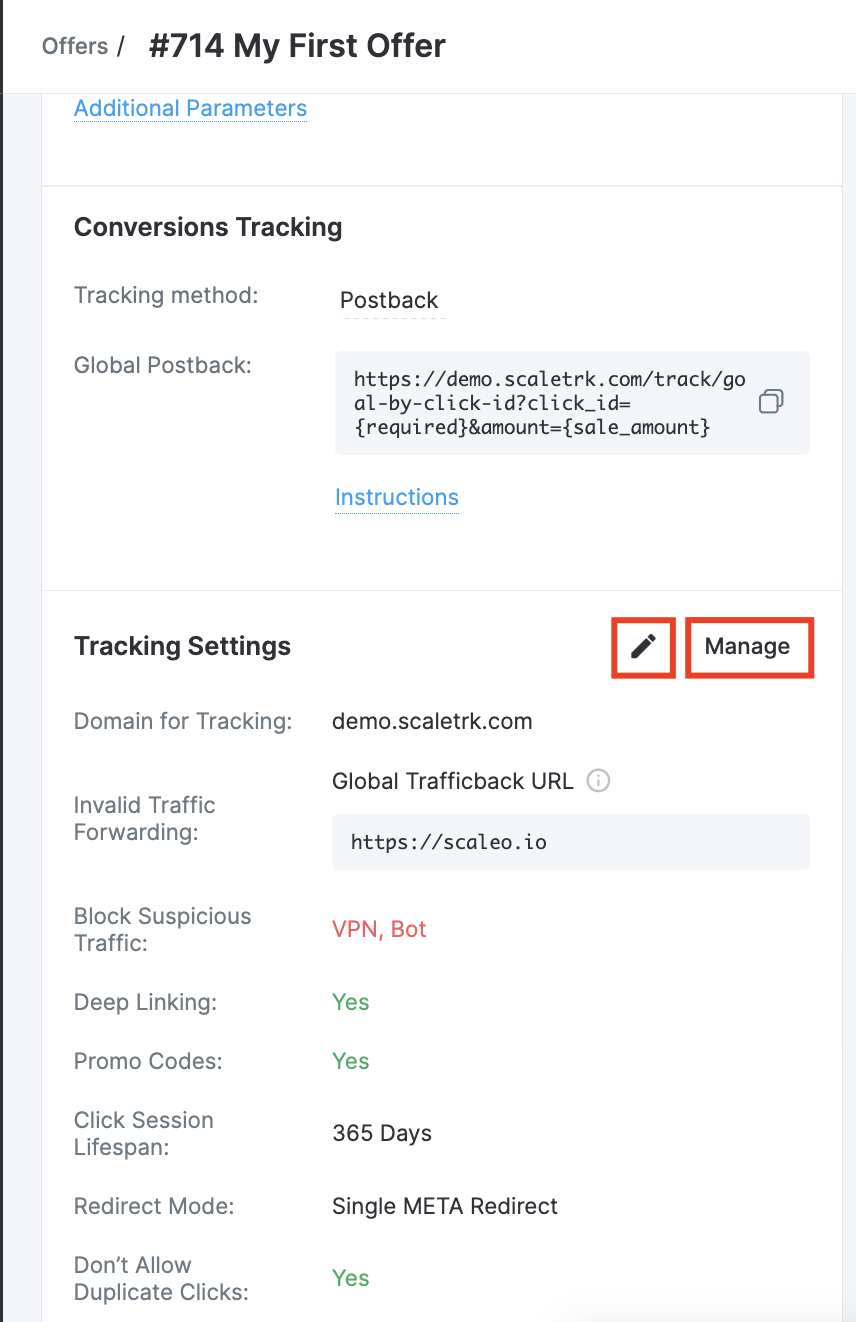
List of all options available for editing in the Tracking Settings
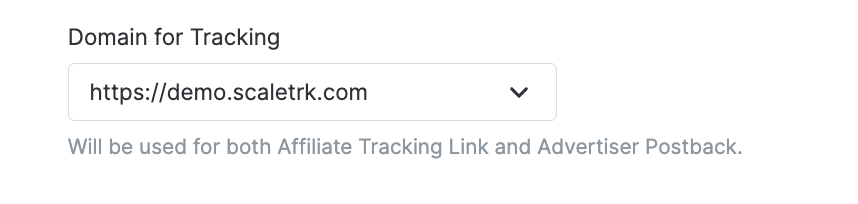
Domain for Tracking
Tracking domains are used for both Affiliate Tracking Links and Advertiser Postbacks.
From the dropdown list you can choose one of your tracking domains which will be used for this offer by default. Note that all your active tracking domains will also keep working for Affiliate Tracking Links and Advertiser Postbacks.
For the Direct Linking tracking method - the Landing Page URL is used instead of the Tracking Domain URL for an Affiliate Tracking Link.
Tracking Method
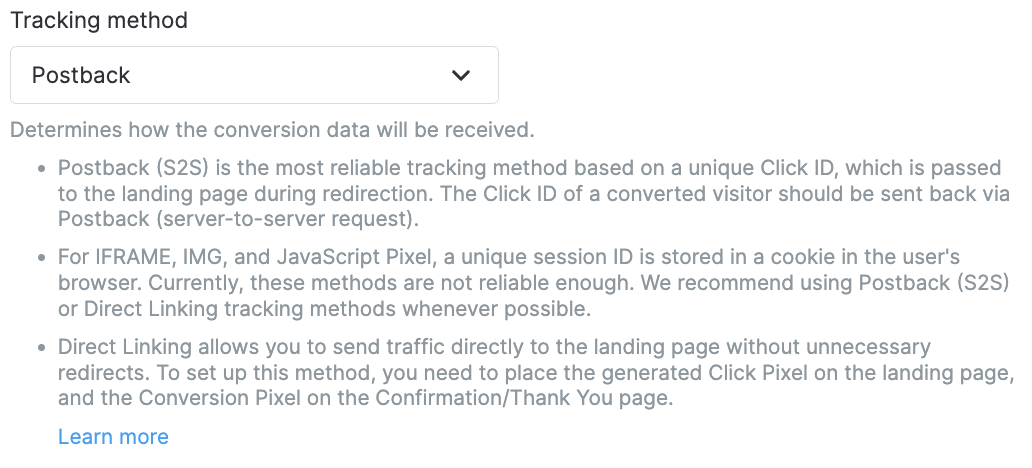
This option determines the method, in which the conversion data is retrieved.
- Postback (S2S) is the most reliable tracking method based on a Click ID value, which is passed to the landing page during redirection. The Click ID of a converted visitor should be sent back via Postback (server-to-server request).
- For IFRAME, IMG, and JavaScript Pixel, a unique session ID is stored in a cookie in the user's browser. Currently, these methods are not reliable enough. We recommend using Postback (S2S) or Direct Linking tracking methods whenever possible.
- Direct Linking allows sending traffic directly to the landing page without unnecessary redirects. To set up this method, it's required to place the generated Click Pixel on the landing page, and the Conversion Pixel on the Confirmation/Thank You page.
Note: Direct Linking method has less options for managing.
Advertiser Security Token for Conversion check must be disabled in the advertiser's profile.
- Domain for Tracking (will be used for conversion pixel)
- Click Session Lifespan
- Promo Codes
- Don’t Allow Duplicate Clicks
- Postback Whitelist & Blacklist IPs
- Impressions URL
- Unique Session Span
Click Session Lifespan
Click session duration, during which conversions can be made. The available options are: minutes, hours, days. The "365 days" option is set by default.

Promo Codes
Essentially, a Promo Code is a set of symbols that the end users enter when placing an order to receive an additional discount or bonus.
Simply create a Promo Code for an affiliate to advertise to their audience. Since this method does not require a Tracking Link, the conversion is automatically attributed to the offer and the Affiliate using that particular Promo Code.

When the Promo Codes feature is enabled in an Offer, a widget with a list of Promo Codes becomes available on the left of the Offer's details.

For more details about this functionality and its features, you can refer to the Promo Codes article.
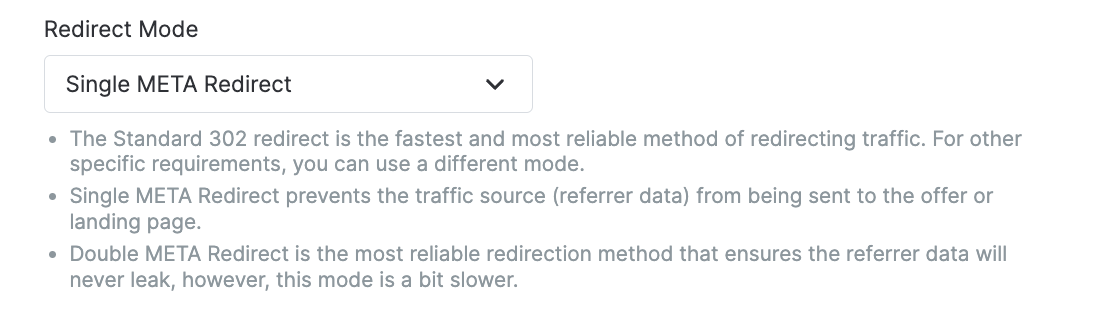
Redirect Mode
- The Standard 302 redirect is the fastest and most reliable method of redirecting traffic. For other specific requirements, you can use a different mode.
- Single META Redirect prevents the traffic source (referrer data) from being sent to the offer or landing page.
- Double META Redirect is the most reliable redirection method that ensures the referrer data will never leak, however, this mode is a bit slower.
Deep Linking
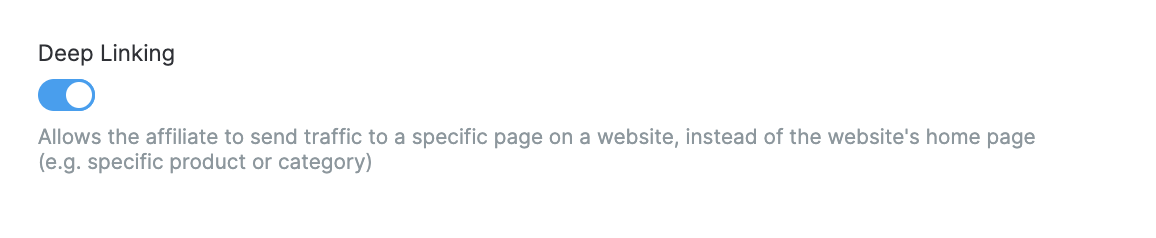
This option allows affiliates to send traffic to a specific page on a website, instead of the website's home page (e.g. a specific product or category)
It should always be the last parameter in the tracking link. There is no need to add any additional parameters to the deep link, it will automatically inherit additional parameters from the default landing page.
The handler processes the encoded and decoded link. Note, that if you add specific parameters to a deep link, they shouldn't repeat the parameters from the default landing page. If the deep link is encoded, the additional parameters must also be encoded.
Example of a decoded link: https://demo.scaletrk.com/click?o=716&a=2&sub_id1=demo&deep_link=https://www.scaleo.io/blog/server-side-tracking-pros-cons-and-implementation-for-casino-affiliates/
Example of an encoded link: https://demo.scaletrk.com/click?o=716&a=2&sub_id1=demo&deep_link=https%3A%2F%2Fwww.scaleo.io%2Fblog%2Fcpa-affiliate-tracking-software-how-to-choose-the-best-cpa-software%2F
Block Suspicious Traffic
Clicks identified as VPN, Proxy, or Bot Suspicious Traffic will be categorized as Invalid Traffic and redirected to the Invalid Traffic Forwarding option below. The system checks the client's IP and based on the results, it marks the click as VPN, Proxy, or Bot. Generally, if the option is disabled, this categorisation has only an informative character.

Don't Allow Duplicate Clicks
If enabled, duplicate clicks will be categorized as Invalid Traffic and forwarded to the option set in the Invalid Traffic Forwarding.
It means that only the first click will be redirected to the target Landing page from one device, following clicks from the same device will be treated as invalid. Whether a click is a duplicate is decided based on the cookies in the user's browser and it doesn't matter if the clicks were made via different affiliates' tracking links.

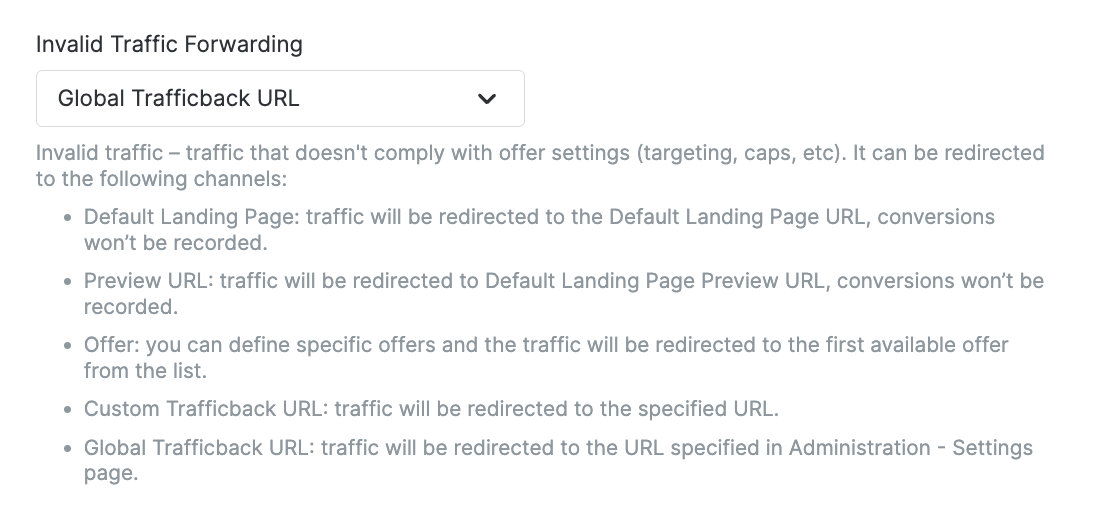
Invalid Traffic Forwarding
Invalid traffic – traffic that doesn't comply with offer settings (targeting, caps, etc). It can be redirected to the following channels:
- Default Landing Page: traffic will be redirected to the Default Landing Page URL, conversions won’t be recorded.
- Preview URL: traffic will be redirected to Default Landing Page Preview URL, conversions won’t be recorded.
- Offer: you can define specifiс offers and the traffic will be redirected to the first available offer from the list.
- Custom Trafficback URL: traffic will be redirected to the specified URL.
- Global Trafficback URL: traffic will be redirected to the URL specified in Administration - Settings page.
Require Advertiser Security Token for Conversion
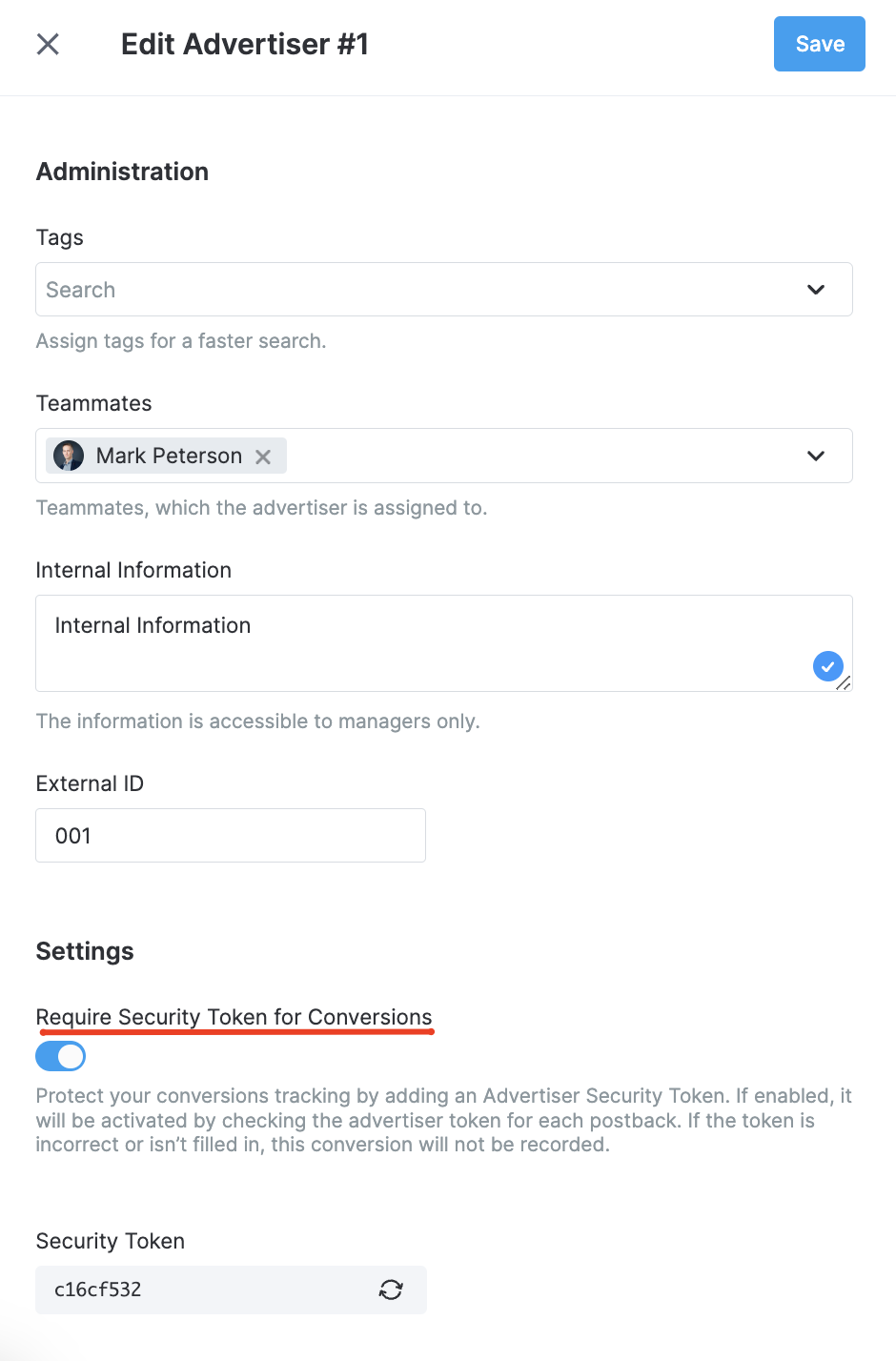
Advertiser Security Token is a feature that authenticates every conversion with a token string and prevents fraud from the side of Affiliates on your Scaleo platform.
If enabled, every postback received to the system requires a correct security token sent. To disable this option go to the Advertisers’ Settings.

It is possible to switch it on or off in the Advertiser's profile - it will affect all Advertiser's Offers.
The token parameter must be sent with every postback.
For complete information on the principles of Advertiser Token functionality and its purpose, you can refer to this article.
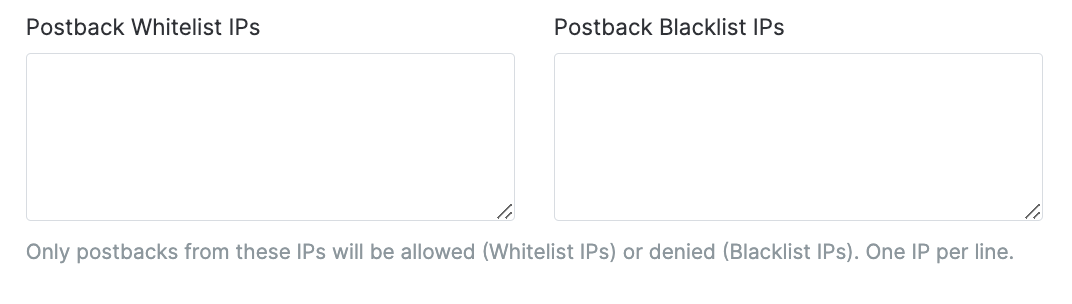
Postback Whitelist and Blacklist IPs
Only postbacks from these IPs will be allowed (Whitelist IPs) or denied (Blacklist IPs). One IP per line.
This feature is very useful to enhance security, ensuring that postbacks are received exclusively from the advertiser's IP addresses.
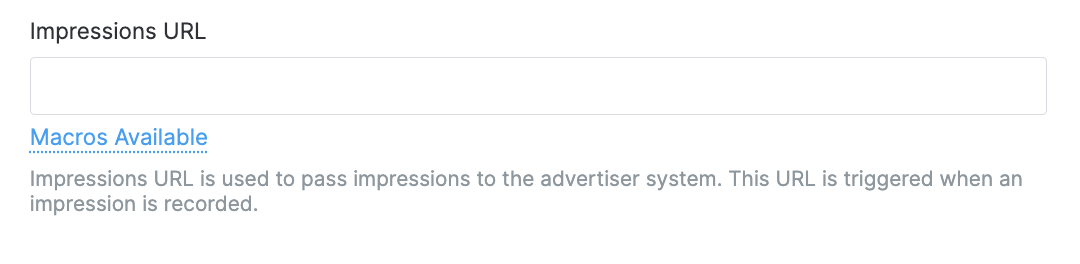
Impressions URL
Impressions URL is used to pass impressions to the advertiser system. This URL is triggered when an impression is recorded.
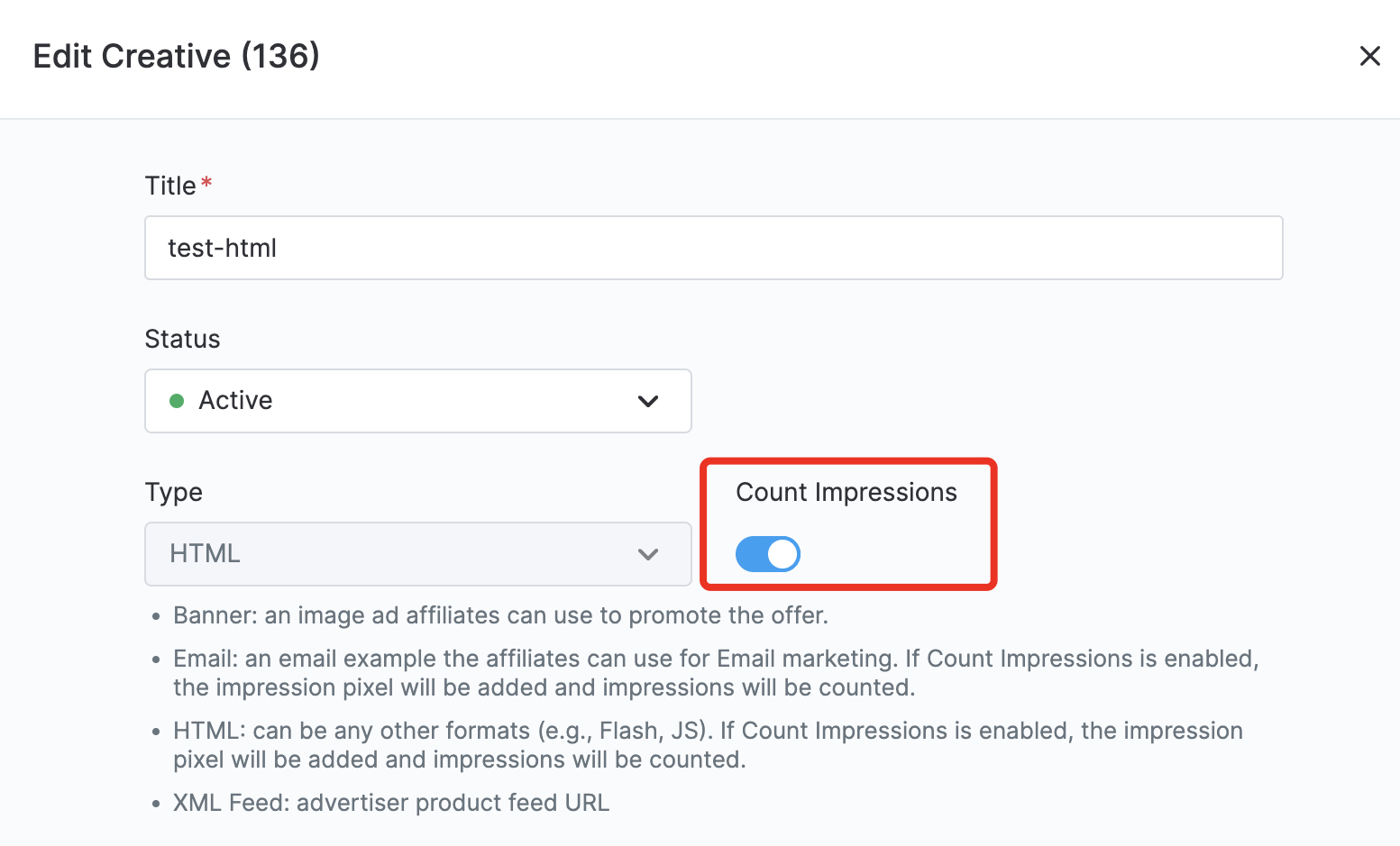
In Scaleo, impressions can be tracked and counted, but not billed for. In the Reports section, the quantity of impressions and CTR can be found.
For impressions to be tracked, the Count Impressions toggle should be activated for the Creative. The Creative should be either of the following types: HTML, Email.
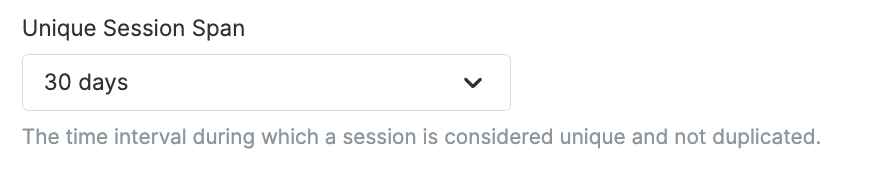
Unique Session Span
The time interval during which a session is considered unique and not duplicated. Available options are 1 minute, 1 day, 7 days, 14 days, 30 days, and 60 to 30 days.
In the Clicks report, under Transactions, a special column shows information if a click was unique or not. A cookie file is created when a tracking link is clicked, and upon a subsequent click, the cookie is checked. If the cookie exists, the click is considered as non-unique.