Campaign Caps
Campaign Caps let you limit how many FTDs a campaign can bring in a day, a month, or in total, and decide what happens to commissions once the limit is reached.
Caps are set per campaign by managers in the Teammate Portal. Affiliates see their cap progress in the Affiliate Portal, and both sides get notified as the cap fills up.
If you don't see the cap settings on your campaigns, contact your account manager to enable them. New to campaigns? Start with Campaigns — Tracking Links for iGaming Operators.
Setting up a cap
- Go to Campaigns in the Teammate Portal and open a campaign, or click + Add Campaign.
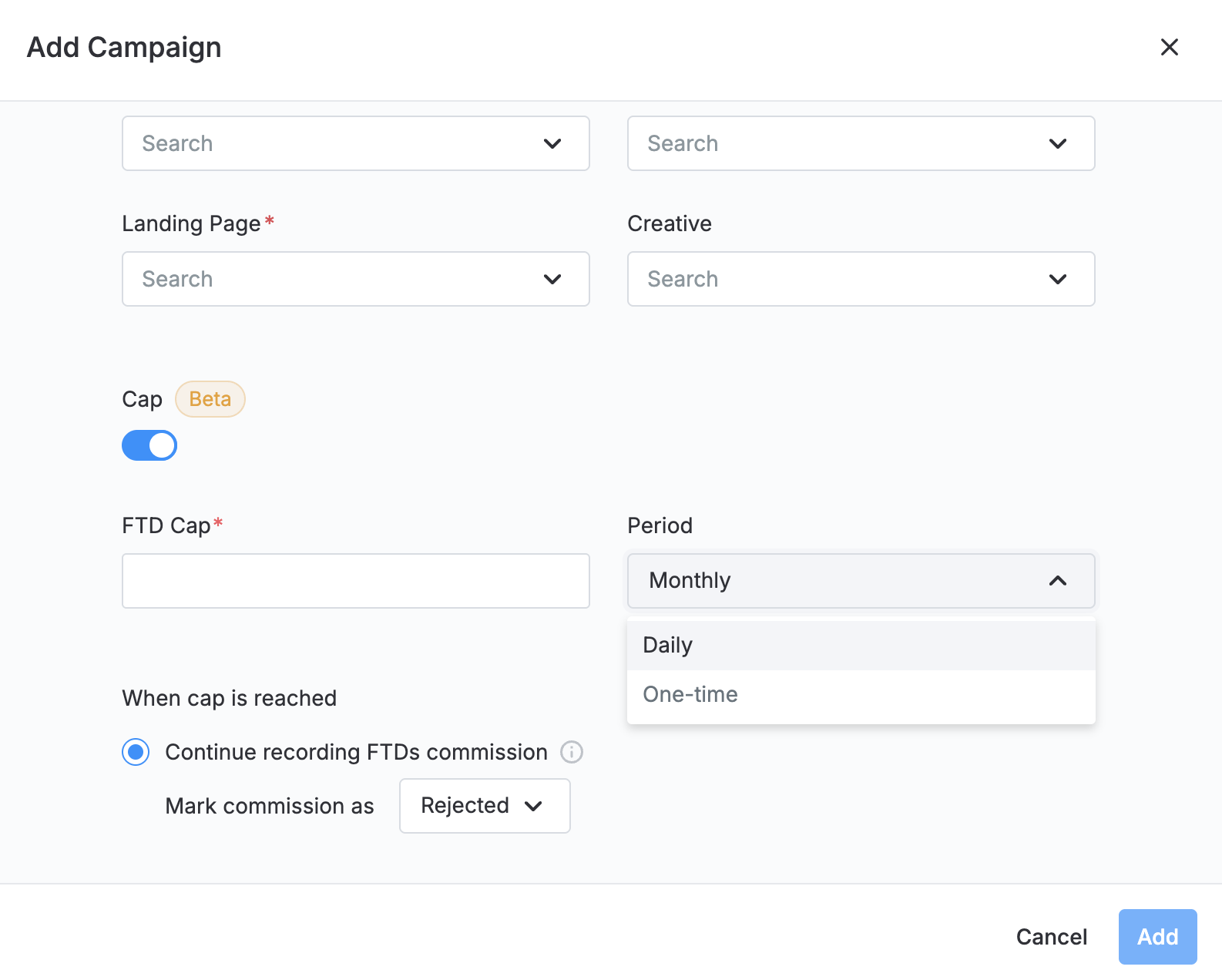
- Turn on Enable cap. The cap settings appear below the toggle.
- Set the FTD Cap — the maximum number of FTDs for the period. Must be a whole number, 1 or higher.
- Choose the Period: Monthly (default), Daily, or One-time.
- Under When cap is reached, choose what happens after the limit (see below).
- Click Save.
Each campaign has one cap. To cap different traffic separately, use separate campaigns.
You need the Can add, edit, and delete Campaigns permission to set up caps.
What happens when the cap is reached
Once the campaign reaches its cap, FTDs keep being recorded, but new FTD (CPA) commissions are created with the status you choose in Mark commission as: Approved (default), Pending, Rejected, or Trash.
For example, choose Rejected to stop paying for FTDs over the limit, or Pending to review them manually before deciding.
These commissions are marked with the note "The cap is reached." so you can find them in Transactions. The FTD itself is still recorded, so the player won't be counted for CPA again later.
The cap applies to CPA commissions whether they are created immediately on the FTD or later, after qualifications are checked.
How usage is counted
The cap counts CPA commissions created for the campaign within the current period.
| Period | Resets |
|---|---|
| Daily | Every day at 00:00 UTC |
| Monthly | On the 1st of each month at 00:00 UTC |
| One-time | Never — the cap applies until you raise or remove it |
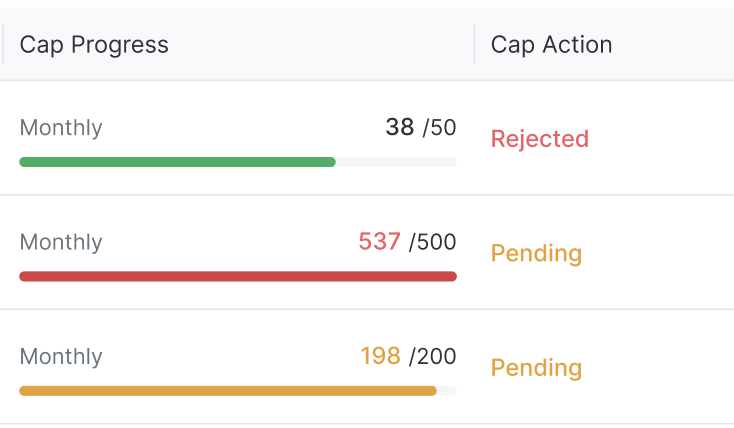
Commissions created after the cap is reached count toward usage only if their status is one your platform counts. That's why the counter can go above the limit (for example, 537 / 500) — it always shows the real number.
Tracking cap progress
In the Teammate Portal, the campaign list has two columns for caps:
- Cap Progress — a progress bar with used / limit for the current period, or — if the campaign has no cap.
- Cap action — what happens when the cap is reached, for example Pending. Hover over it for a short explanation.
If you don't see them, turn them on in the column settings of the campaign list.
The bar changes color as the cap fills up:
| Usage | Color |
|---|---|
| 0–74% | Green |
| 75–99% | Orange |
| 100% and above | Red |
Affiliates see the same Cap Progress for their campaigns in the Affiliate Portal. They don't see what happens when the cap is reached.
Notifications
Scaleo sends an email to the affiliate and their manager when the campaign reaches 75% and 100% of its cap. Each alert is sent once per period: daily and monthly caps can alert again in the next period, one-time caps alert only once.
If you change the cap limit or period, alerts can fire again under the new settings.
The emails use the existing cap templates in Settings → Email Templates. They now include the campaign name and a link to Transactions filtered by the campaign and the current period.
Changing or turning off a cap
- Changes take effect as soon as you save. Commissions already created are not changed.
- Raising the limit doesn't reset the counter — it continues from the current number.
- Turning off Enable cap stops the cap from applying to new FTDs.
Every cap change — turning it on or off, editing the limit or period, changing the action — is recorded in the campaign's Activity Log.
Caps are also available in the API: the campaign object includes a cap object with the cap settings and current usage, and you can set it when creating or updating a campaign.